
NOVA release notes
1.1. Model File Compatibility
- The NOVA 2026 XML file format includes new elements.
- NOVA projects created by previous versions will be loaded and converted to NOVA 2026 format.
- NOVA projects created by NOVA 2026 cannot be opened by previous versions.
1.2. Calculated Results
- Except for certain Enhancements, Modifications, and Corrections, the results calculated by NOVA 2026 are identical to those of NOVA 2024.
1.3. Enhancements
1.3.1. General
- Users can now save projects using the Ctrl+S shortcut.
- The ergonomics of the toolbox have been improved across all manager group boxes. Users can now choose from three visual configurations.
- Improvement of the multiple instances feature of NOVA by adding a lock file system to prevent concurrent access.
Tip
When a project is opened, a .lock file is created to prevent simultaneous access from multiple instances of the software. If the software crashes or is terminated manually, the .lock file may remain and block reopening of the project; in this case, users may need to manually delete the .lock file to restore access.
1.3.2. Database Module
- The table widget has been improved to accelerate the process of pasting large amounts of experimental data.
- When users attempt to delete an element that is used elsewhere in a project, the software prevents the deletion and now additionally displays a detailed message listing all dependent elements that reference it.

1.3.3. Noise Control Treatment Module
1.3.3.1. Single Treatment Editor
- Users can now create an Isotropic Laminate Layer by dragging and dropping isotropic elastic and viscoelastic materials.
- In the graphical multilayer definition tool, users can now delete a layer by pressing the Delete key or by dragging the layer onto the Trash icon.
1.3.3.2. Layer Editor
- In each Layer Editor group box, a button has been added next to each material selector. Clicking this button opens the Material Editor group box and automatically focuses on the corresponding material.
1.3.4. Simulation Module
1.3.4.1. Batch Solution Set Setup
- A new dialog has been introduced for creating batch solution sets. Users can define common solution set parameters and then select all the compatible noise control treatments they want to generate in a single operation.
1.3.4.2. Selective Solution Set Execution
- In addition to running a single solution set or all solution sets, users can now select specific solution sets using checkboxes and run only the chosen ones.

1.3.4.3. Solution Set Editor
- In the Solution Set Editor group box, a button has been added next to the frequency domain selector. Clicking this button opens the Frequency Domain Editor group box frame and automatically focuses on the corresponding frequency domain.
- The excitation selector has been reorganized to show the types of excitation in alphabetical order.
1.3.4.4. Data Visualization
- The automatic color selector used by NOVA when a new set of curves is added to the graphs has been improved by defining a set of colors that are sufficiently distinct from one another and well-suited for both the dark and light themes of the software. Additionally, users now have the option to customize the line style for each group of curves.
- Rather than showing or hiding Absorption, Transmission Loss, and Normalized Pressure Level experimental data, users can select or deselect experimental data in the Simulation Manager.
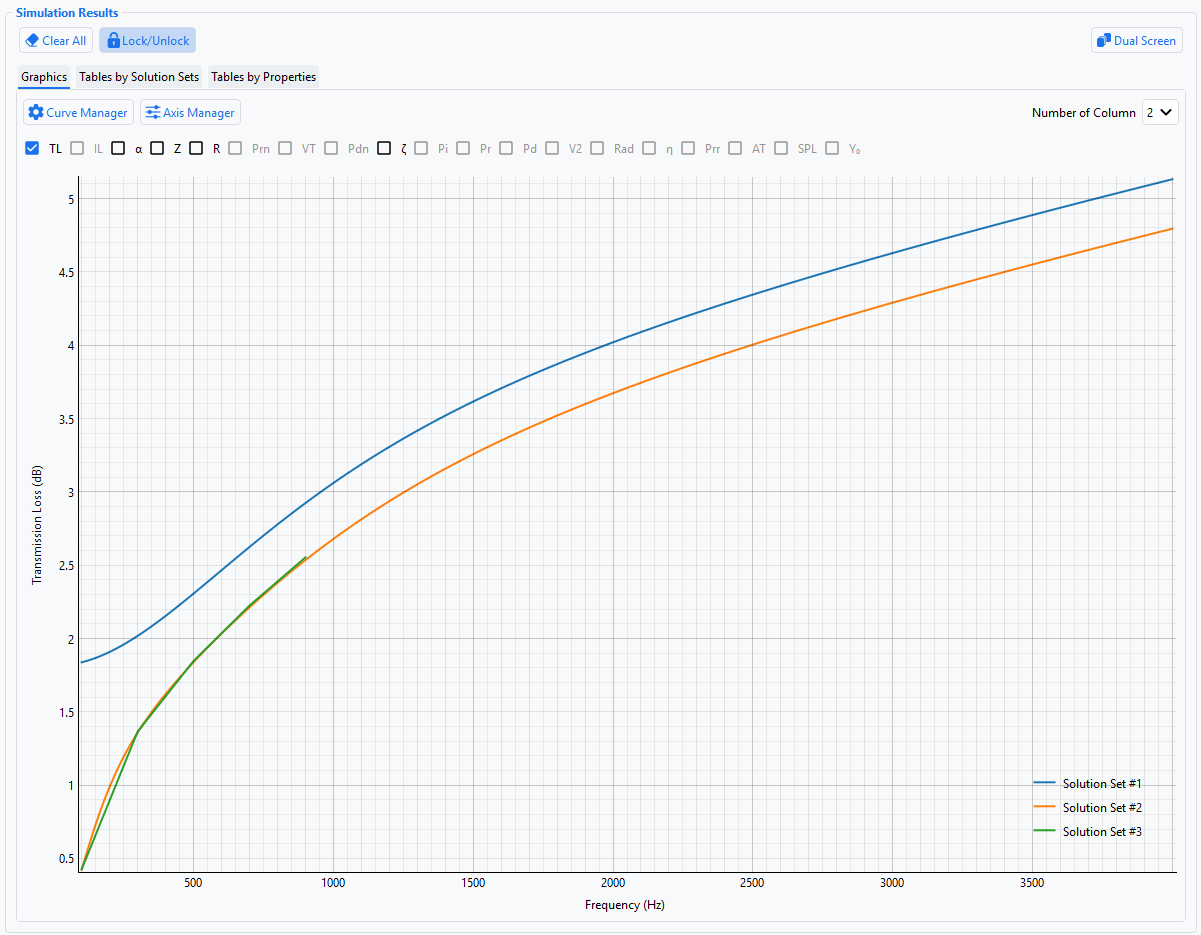
- To further improve curve and graph management, the Simulation Module includes a Clear All button that clears all curves from each graph. Experimental data are erased only in the graphs of the Simulation Module.
- Using the right-click menu on graphs, users can now show or hide the grid and switch between linear and logarithmic scaling for the X-axis. Since graphs are often linked within the same frame, changes to these settings in one graph will automatically apply to the others.
1.3.4.5. Lock / Unlock Mode
- The Simulation Module allows users to manage and view multiple simulations simultaneously. Each time a new calculation is performed, a new set of curves is added to the graphs. To improve curve and graph management, the Simulation Module includes a Lock/Unlock button. If the Lock/Unlock button is unchecked (i.e., in Unlock mode), when users recalculate a simulation, NOVA 2026 will automatically delete all previously simulated data associated with that simulation from the graphs.
1.3.4.6. Table View
- In addition to graphical output, two new tabs have been added to display simulation results in a table, organized by frequency.
1.3.5. Auralization Module
1.3.5.1. Room Acoustics
- A new module has been added for room acoustics auralization in rectangular spaces. Users can define room dimensions, assign properties to each wall (base coverings, architectural elements such as doors, and acoustic materials), and specify the positions of both the source and the microphone. In addition to displaying key values such as RT60, the module allows users to listen to how acoustic materials affect an audio file (mono channel) played from the source, as if it were recorded at the microphone position.
1.3.6. AcoustaLink
- NOVA 2026 introduces several new functionalities designed to work with our external database solution, AcoustaLink, for storing vibro-acoustic material parameters (e.g., Biot or JCA/JCAL equivalent fluid or solid models and single number ratings) and associated files (e.g., images, PDFs, measurement and simulation projects).
1.3.6.1. Import a NOVA Project
- Users can now import a NOVA project from AcoustaLink. The selected project is copied locally to the user’s computer and can then be opened and used as a regular local NOVA project.
1.3.6.2. Import Multiple Materials at Once
- In the Material Database, users can now establish a connection with AcoustaLink to select and import multiple materials along with their associated properties into a NOVA project. This allows for easier integration of external data into the project environment.
1.3.6.3. Export a Graph as PNG
- Users can now export any graph as a PNG image and upload it to a material in AcoustaLink. Simply right-click the graph, select Export to PNG and then choose To AcoustaLink.
1.3.6.4. Export Simulation Results as Curves
- Users can now export one or more curves representing simulation results from a graph in the Simulation Module to AcoustaLink. The data can be associated with a material by right-clicking the graph and selecting the Export Data to AcoustaLink command.
1.3.6.5. Global – Improved Connection System
- Whenever users connect to the database to import or export data, a dialog appears for selecting a material. The preselection tool has been improved to allow sorting materials based on various criteria, such as manufacturer or supplier. Additionally, users’ selections are now saved and automatically restored the next time the dialog is opened.
1.3.7. Batch Mode
- NOVA can now perform calculations without a graphical interface using a batch executable of the software.
1.4. Modifications
1.4.1. Database Module
- In the material editor, a new, improved performance previewer has been added for porous materials. Based on the data entered by the user, it displays absorption and transmission loss using the Johnson–Champoux–Allard model with different frame assumptions (Rigid, Limp, and Elastic).
- In the material editor, the improved performance previewer for porous materials now displays absorption and transmission loss not only in plane wave incidence but also in diffuse field conditions.
1.4.2. Simulation Module
- To improve accuracy, octave band and third octave band frequency domains are now set with a predefined number of points per band of 3. Please note that already existing frequency domains in older projects (2024 and earlier) will not be modified.
1.4.3. Auralization Module
- The Auralization Tool has been upgraded to also accept .wav files following the WAVE EXTENSIBLE format.
- For a transmission loss case with a stereo audio file, users can now listen to the effect of a noise control treatment on each channel independently.
1.5. Corrections
1.5.1. General
- The text font used in NOVA has been standardized to avoid display problems due to regional settings.
- The “.” key on the numeric keypad is automatically changed to the right decimal separator (i.e., “,” or “.”) depending on the regional settings.
- Ensured that the software prompts users to save the current project before opening another project when using the Open Project button to select a project file.
1.5.2. Database Module
- The import tool for Mecanum Tube-X samples has been updated to correctly read the transfer matrix components. The issue occurred because the code was extracting data from the wrong column indices in the input file.
- A correction was made to correctly calculate the total mass per unit surface of sandwich and embedded Helmholtz resonator layers in the Layer Editor group box.
- A correction was made in the Layer Editor group box for fluid materials defined from environmental conditions to correctly update air properties if users modify either one of the three parameters (temperature, atmospheric pressure and humidity).
1.5.3. Noise Control Treatment Module
- The Double Wall Treatment editor has been corrected to prevent false warning messages when the inner cavity of the double wall treatment equals the sum of all wall ereatment thicknesses.
- A correction was made to ensure that a parallel or double wall treatment appears invalid if it contains an invalid single treatment.
- A correction was made to correctly calculate the total mass per unit surface of a single treatment in the SNCT Viewer group box.
1.5.4. Simulation Module
- A correction was made to the cancellation process to prevent a software crash when using turbulent boundary layer or rain on the roof excitations.
- A correction was made to prevent a software crash when using turbulent boundary layer or rain on the roof excitations in combination with a noise control treatment that contains at least one orthotropic material with one of the three configurations below:
- A Young’s modulus 1 defined with a spectrum
- A shear modulus 12 defined with a spectrum
- At least one negative Poisson’s ratio
- A correction was made in the solution set editor to correctly take into account invalid values of Lx and Ly with the FTMM solver.